The laptop is old, and everything about it feels slow. It takes a minute to start, the programs open with a pause, and saving a file means watching a small spinning wheel. Then someone swaps a single component inside it, a flat stick of circuit board no bigger than a stick of chewing gum, and the same laptop wakes in seconds.
That component is a solid-state drive, and it is the single most dramatic upgrade most computers ever receive. A solid-state drive, or SSD, stores data on flash memory chips instead of on spinning magnetic discs, and that one difference changes everything about how a computer feels.
Data is read and written electrically, in microseconds, and the drive can fetch many pieces of data at the same time. But not all solid-state drives are equal: two drives can look identical and yet one can be five times faster than the other. The specification sheet is the only way to tell them apart, and here is what each of its numbers means.

Solid-State Drive Specs Explained
1. Interface and form factor
The interface is the road between the drive and the rest of the computer, and it sets the maximum speed everything else can achieve. Older SATA drives are limited to about 550 megabytes per second, which was fast when they arrived and is now the bottleneck. Modern NVMe drives use PCIe lanes: PCIe 3.0 allows roughly 3,500 megabytes per second, PCIe 4.0 roughly doubles that to about 7,000, and PCIe 5.0 doubles it again to around 14,000. A drive must match both the slot and the interface: an NVMe drive will not work in a SATA-only slot, and a fast PCIe 5.0 drive will run at PCIe 4.0 speeds in an older machine.
2. Sequential read and write speed
Sequential speed is the headline number on the box, and it measures how fast the drive can read or write one large, continuous file, such as a video. A modern NVMe drive might quote 7,000 megabytes per second for reading and 6,000 for writing, which means it can copy a large film in a couple of seconds. The number is still useful as a ceiling: it tells you the fastest the drive can ever go, and it is a fair way to compare drives of the same generation. Treat the headline as a promise about the best case, not about the average day.
3. Random read and write speed
Random speed is the number that decides how fast a computer feels, and it measures how quickly the drive can fetch many small pieces of data scattered across the memory. That is what happens when a program starts or a game loads a level. It is measured in IOPS, input/output operations per second, and a good modern drive manages hundreds of thousands of them. The difference comes from the drive’s controller, the small processor that manages the flash memory, and from how many flash chips the drive can talk to at once. The way the controller and chips work together is described in how a solid-state drive works, from the flash cells to the finished drive.
4. Capacity and over-provisioning
Capacity is quoted in gigabytes or terabytes, and the real question is how much of it you can actually use. A drive labelled 1 terabyte usually offers about 931 gigabytes of usable space, because manufacturers count a terabyte as a thousand gigabytes while computers count it as 1,024. For most people, 1 terabyte is the sweet spot today: enough for the operating system, programs, and a library of games or photos.

5. NAND type: SLC, MLC, TLC, and QLC
NAND is the flash memory itself, and the type decides how much data each memory cell holds. SLC stores one bit per cell, MLC stores two, TLC stores three, and QLC stores four. More bits per cell means cheaper storage, because the same number of cells holds more data, which is why almost all consumer drives today use TLC or QLC. TLC is the sensible middle ground for most buyers, fast enough and durable enough for years of normal use. QLC is the cheapest, and it is fine for storing files and playing games, but it can slow down dramatically when writing very large files.
6. Endurance: TBW and DWPD
Endurance is the measure of how much data a drive can be written before its flash cells wear out, and it is quoted as TBW, terabytes written, or DWPD, drive writes per day. A drive rated at 600 TBW can have 600 terabytes written to it over its warranty period before the manufacturer expects it to wear out. For most people, that is far more than they will ever use: a typical user writes perhaps 10 to 20 terabytes a year, so a 600 TBW drive would last decades. The warranty is linked to endurance too: most manufacturers warrant a drive for five years or until its TBW is reached, whichever comes first.
7. DRAM cache and controller
The last specification is one many buyers never notice, and it matters more than it sounds. A DRAM cache is a small amount of fast memory on the drive that holds a map of where every piece of data lives, so the controller can find things instantly instead of searching through the flash. The build process that puts the controller, cache, and flash together is shown in how a solid-state drive is made, from bare circuit board to tested drive.
Solid-State Drive Specs
| Specification | Typical range |
|---|---|
| Interface | NVMe over PCIe 3.0, 4.0, or 5.0; or SATA |
| Form factor | M.2 2280, or 2.5-inch SATA |
| Sequential read speed | About 550 to 14,000 megabytes per second |
| Sequential write speed | About 500 to 12,000 megabytes per second |
| Random read speed | About 500,000 to 1,500,000 IOPS |
| Capacity | About 500 gigabytes to 4 terabytes |
| NAND type | TLC most common; QLC budget; SLC enterprise |
| Endurance | About 300 to 1,200 terabytes written |
What Does a Solid-State Drive Cost?
A 1-terabyte NVMe solid-state drive is estimated to cost roughly $60 to $150, depending on the speed, the NAND type, and whether it has a DRAM cache, while a 2-terabyte drive is estimated at roughly $120 to $300. Budget SATA drives are estimated at roughly $40 to $80 for 1 terabyte. The gap between the cheapest and the dearest drive of the same capacity is explained in why a solid-state drive is so expensive, from the cost of the flash memory to the controller and the cache.
A Rare Fact
The first solid-state drive was not a computer part at all in the modern sense. In 1978, a company called StorageTek built a drive that used RAM chips instead of flash memory, and it cost so much that only a handful were ever sold. Today, that same money buys a drive fifty times larger and a hundred times faster.
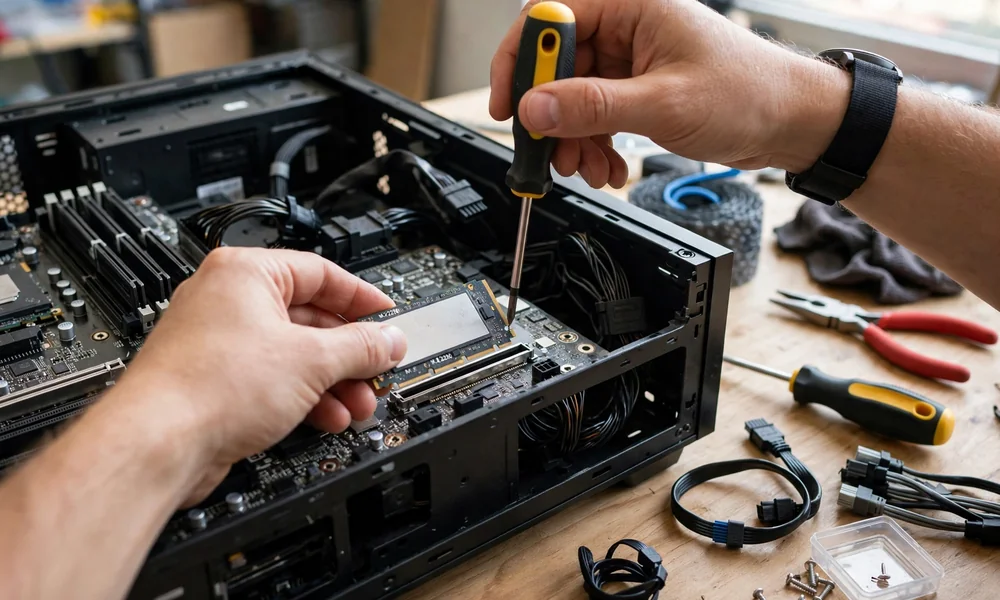
Choosing a solid-state drive is simpler than the specification sheet makes it look. Match the interface and form factor to your machine first, then look at random speed rather than the headline sequential number, then check the NAND type and the endurance rating to see how long the drive will last.